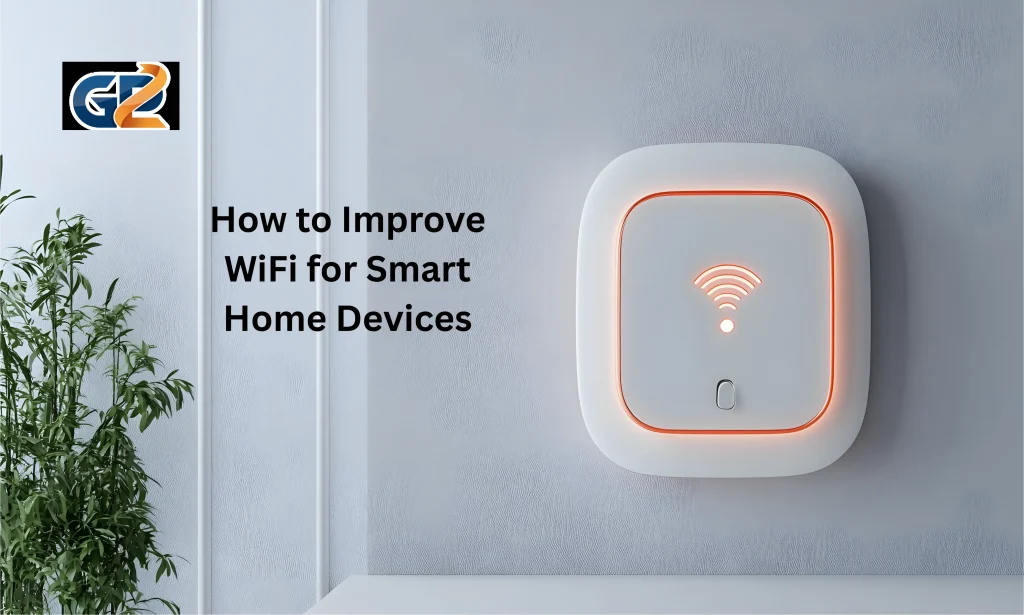
WiFi is the backbone of smart home devices. Devices like smart lights, cameras, speakers, and thermostats rely on a stable internet connection to work properly. Without good WiFi, these devices may respond slowly or stop working altogether. A strong connection ensures smooth operation, fast updates, and better control from your phone or smart hub.
Common WiFi issues in smart homes include slow speeds, weak signals, and frequent disconnections. Physical obstacles like walls or floors can block signals. Other electronics, like microwaves or cordless phones, can cause interference. Too many devices on the same network may also reduce performance.
Table of Contents
Check Your Internet Speed and Plan
Checking your internet speed and plan is the first step to improving WiFi for smart home devices. Smart devices need a stable and fast connection to work properly. Slow internet can cause delays, buffering, or devices not responding at all. Testing your current speed helps you understand if your plan meets your home’s needs.
You can test your internet speed using free online tools. Check both download and upload speeds. Download speed affects how fast devices receive data, while upload speed affects how fast they send information. For smart home devices like cameras, both speeds are important for smooth performance.
If your speed is lower than your plan, it could indicate issues with your router or network. If your plan is too basic for multiple devices, consider upgrading. Homes with many smart devices need higher speeds to avoid interruptions.
Optimal Router Placement for Better Coverage
Router placement plays a big role in WiFi performance for smart home devices. A well-placed router ensures strong signals reach all corners of your home. Poor placement can cause weak signals, slow speeds, or devices not connecting at all.
Place your router in a central location, away from walls, corners, and floors. Higher positions, like shelves, help the signal travel better. Avoid placing it near metal objects or large appliances, as they can block or weaken signals.
Open spaces work best for coverage. Closed cabinets or rooms with thick walls can reduce signal strength. If your home is large, consider placing the router where most smart devices are used to ensure consistent connectivity.
Upgrade Your Router or Modem
Upgrading your router or modem can significantly improve WiFi for smart home devices. Older devices may not support the latest WiFi standards, causing slower speeds and weaker coverage. A modern router can handle more devices at once and provide faster, more stable connections.
Look for routers that support WiFi 5 or WiFi 6. These models offer better speed, range, and efficiency for multiple smart devices. Some routers also include features like beamforming, which directs signals to where devices are located for stronger connections.
A modem upgrade may also help if your internet plan supports higher speeds. Outdated modems can limit your connection, even with a fast plan. Check if your modem is compatible with your current internet package to avoid bottlenecks.
Use WiFi Extenders or Mesh Systems
WiFi extenders and mesh systems can improve coverage for smart home devices. Extenders boost your existing WiFi signal to reach areas with weak connections. They are easy to set up and work well in smaller homes or specific dead zones.
Mesh systems are better for larger homes. They use multiple nodes to create one strong network that covers every corner. Devices automatically connect to the strongest node, ensuring stable performance. Mesh networks reduce dropouts and maintain speed even with many smart devices connected.
Reduce Interference from Other Devices
Other electronic devices can interfere with your WiFi and affect smart home performance. Microwaves, cordless phones, and baby monitors often use the same frequency as WiFi, causing signal drops or slow speeds. Reducing interference helps devices stay connected and work smoothly.
Keep your router away from appliances and large electronics. Even metal objects like filing cabinets or mirrors can block signals. Positioning your router in an open space minimizes interference and improves coverage.
Separate Networks for Smart Devices
Creating a separate network for smart devices can improve performance and reliability. Many routers allow you to set up a dedicated network or guest network specifically for smart home devices. This keeps them from competing with phones, laptops, and streaming devices for bandwidth.
A separate network reduces slowdowns and ensures devices respond quickly. It also helps in managing traffic, especially if you have many smart lights, cameras, or speakers connected at the same time.
Setting up a dedicated network is simple. Most modern routers have options to create a second network with its own name and password. Assign all smart devices to this network to keep them organized and stable.
Limit Bandwidth-Heavy Activities
Limiting bandwidth-heavy activities can improve WiFi performance for smart home devices. Activities like streaming 4K videos, online gaming, or large downloads use a lot of internet speed. This can slow down your smart devices or cause them to disconnect.
Try to schedule heavy activities during times when smart devices are not in active use. For example, avoid downloading large files while security cameras are streaming. Prioritizing important devices can keep them responsive.
Some routers allow you to set Quality of Service (QoS). This feature gives priority to smart devices over less critical traffic. It ensures lights, cameras, and thermostats work smoothly even when other devices are online.
Managing bandwidth helps maintain a stable connection. By controlling high-demand activities, your smart home devices stay fast, reliable, and responsive at all times.
Test and Monitor WiFi Performance
Testing and monitoring your WiFi performance is important to keep smart home devices working smoothly. Regular checks help you identify weak spots, slow speeds, or areas with frequent disconnections. Knowing your network’s strengths and weaknesses allows you to fix problems before they affect your devices.
Use free online tools or WiFi analyzer apps to measure speed and signal strength. Walk around your home to check coverage in different rooms. Note any areas where the signal is weak or devices struggle to connect.
Monitoring also helps track changes over time. If speeds drop or devices act up, you can quickly identify the cause. Updating firmware, moving the router, or adjusting network settings can resolve issues.
Conclusion
To improve WiFi for smart home devices, start by checking your internet speed and plan. Place your router in a central, open spot and keep it away from obstacles. Upgrade your router or modem if needed. Use WiFi extenders or mesh systems for better coverage. Reduce interference, limit heavy internet use, and keep firmware updated. Separate networks for smart devices also help.